Turn your iPhone into a wireless keyboard and mouse for any computer using an ESP32-S3 microcontroller.
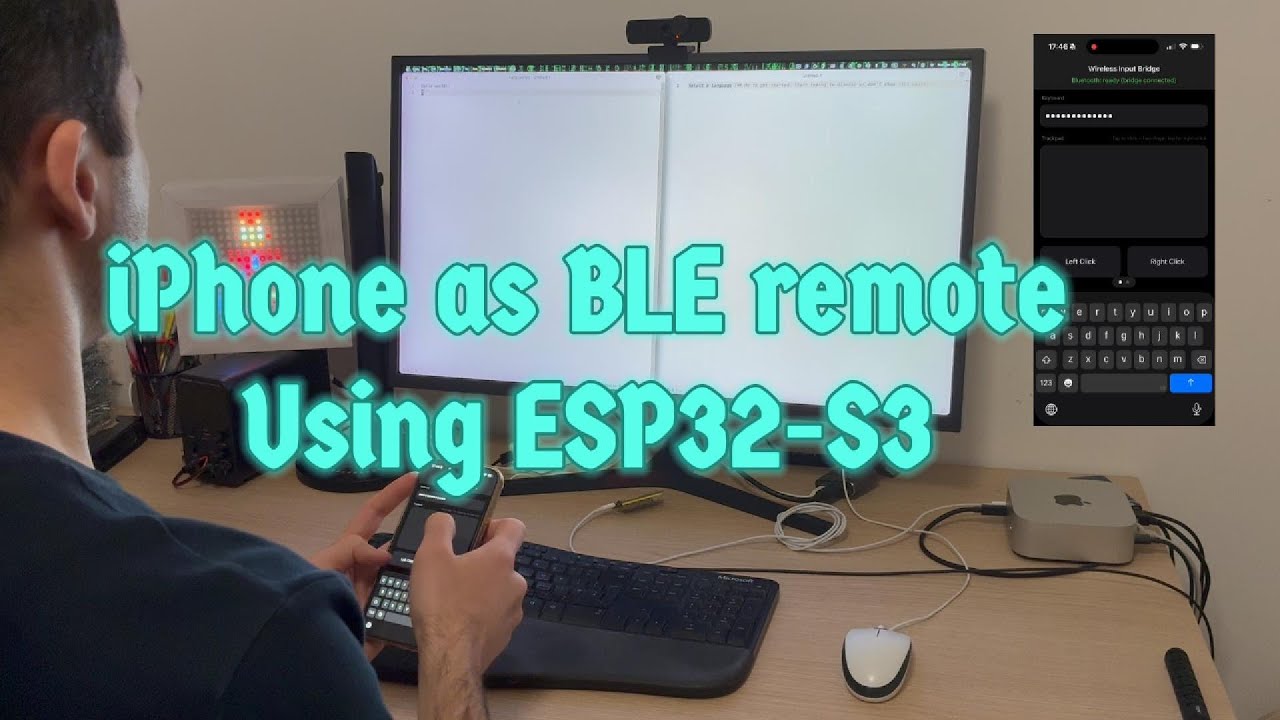
Ever tried typing a password on your Smart TV using the remote? Or needed to control a computer from across the room? This project creates a true wireless input bridge - your iPhone becomes a fully functional keyboard and trackpad that works with any device via USB.
Unlike software solutions that require network setup or specific operating systems, this works at the hardware level. The computer sees it as a real USB keyboard and mouse.
- English and Ukrainian input - Automatic alphabet detection with physical US and Ukrainian Enhanced HID mappings
- Two keyboard modes - Use the native iOS keyboard beside the trackpad or the dedicated full-screen keyboard tab
- Layout synchronization - Configurable Ctrl+Space, Ctrl+Shift, Alt+Shift, Shift+Space, or Win+Space host shortcut
- Shortcuts sharing - Send text or URLs from the iOS Share sheet through a one-time Shortcuts setup; the main app waits for BLE and types it reliably
- Clipboard typing - Send text from the iPhone clipboard in one tap
- Precision trackpad - Cursor movement, two-finger scrolling/right click, pinch-to-zoom, tap-drag, edge scrolling, and three-finger middle click
- Keyboard trackpad - Uses the free portrait space below the full keyboard without extra mouse buttons
- Hardware control deck - System, media, audio, microphone-mute, and numpad HID controls
- QR and barcode scanner - Scan into the composer or automatically type codes, including an optional batch mode
- Mouse jiggler - Configurable foreground pointer movement with an automatic stop timer
- Universal compatibility - Works with any device that accepts USB HID devices (Smart TVs, computers, streaming boxes, embedded systems)
- Zero configuration - No drivers, no network setup, just plug and play
- Low latency - Direct Bluetooth LE connection for responsive input
- Reliable reconnect - Remembers the last ESP32 and reconnects with backoff
- Warm-reboot recovery - Recovers a stalled USB HID endpoint when a host reboots without removing USB power
- Optional privacy mask - Keep the typing composer visible or mask it when entering passwords
- Hardware key hold - Every on-screen key sends real HID key-down/key-up events, including multi-finger chords; modifiers can also be tapped to latch
The v2 prototype adds a direct BLE HID keyboard/mouse mode. Keyboard and mouse input are stable on macOS. Linux has worked in limited testing, including a 2.1.3 sleep/wake reconnect without relaunching the app, but still has unresolved connection and host-switching problems. Windows remains untested. ESP32 mode remains the initial default, and the app remembers the selected mode.
- In the connection status strip, open ESP and choose Прямий Bluetooth.
- Open the pairing button beside the status. To connect from the computer, enable pairing in the app and select ESP Remote (or the iPhone name) in the computer's Bluetooth settings. Confirm any system pairing prompt.
- To initiate the connection from the iPhone, open Bluetooth settings on the computer, choose Знайти комп’ютер in the app, then select the computer. This path needs the host to advertise over BLE. A BLE link alone is not an HID connection; wait until the app reports keyboard and mouse connected.
- Use the existing keyboard and trackpad. Return to ESP-адаптер to use the USB bridge. Switching releases held input and cancels queued text.
- On Linux, start the connection from the computer and connect only the HID
service; see the Linux guide and
./scripts/linux-hid-connect.sh. Run the helper with--installonce for automatic HID-only reconnect after sleep and a persistent WirePlumber audio isolation rule. A BlueZ desktop does not advertise over BLE, so step 3 cannot find it, and its generic "Connect" also brings up the iPhone's audio profiles. - If input does not become ready, use Поділитися журналом in the pairing panel. The log includes connection stages, not typed text. During prototype updates a host may retain old GATT services; remove only this app/iPhone pairing on the test host and pair again if necessary.
Pairing is open for two minutes. Once connected, input is pinned to that host; use the pairing panel to select a different computer. The app clears held and queued input when it moves to the background or loses its HID session.
Run ./scripts/test-direct-hid.sh on a Swift-equipped machine to check HID report
encoding, queue backpressure, host selection, and descriptor sizes. The IPA
workflow runs these checks for pull requests and pushes to the v2 branch before
building the app. Version 2.0.0 (16) passed these tests and the Xcode 26.6 iOS
build on 2026-09-04 (Actions run and IPA artifact).
Broader pairing and reconnect tests remain pending; see the macOS result above.
- ESP32-S3 development board (must have native USB support)
- iPhone running iOS 17+
- USB-C cable to connect ESP32 to target computer
Popular ESP32-S3 boards that work:
- Waveshare ESP32-S3-Zero
- ESP32-S3-DevKitC-1
- Adafruit QT Py ESP32-S3
- Seeed Studio XIAO ESP32S3
- Install Arduino IDE
- Add ESP32 board support:
File > Preferences > Additional Board Manager URLshttps://raw.githubusercontent.com/espressif/arduino-esp32/gh-pages/package_esp32_index.json - Install the NimBLE library:
Tools > Manage Libraries > Search "NimBLE-Arduino" - Open
sketch_uid_keyboard_ble/sketch_uid_keyboard_ble.ino - Select your ESP32-S3 board and set
Tools > USB Mode > USB-OTG (TinyUSB) - Upload the sketch
For the Waveshare ESP32-S3-Zero, the Build ESP32-S3 firmware GitHub Actions
workflow also produces a complete 4 MB merged image and its SHA-256 checksum.
Flash the downloaded image from the ROM bootloader with:
esptool \
  --chip esp32s3 \
  --port /dev/ttyACM0 \
  --before no-reset \
  --after no-reset \
  write-flash 0x0 ESPRemoteControl-ESP32-S3-Zero.bin
Press RESET after flashing. The serial device number can change after USB re-enumeration, so verify the port before writing.
- Open
ESPRemoteControl.xcodeprojin Xcode - Connect your iPhone and build/install the app
- Grant Bluetooth permissions when prompted
The Build unsigned iOS IPA GitHub Actions workflow builds an unsigned
ESPRemoteControl-unsigned.ipa on a macos-26 runner. Run the workflow from
the repository's Actions tab, download the artifact, and install the IPA with
SideStore. SideStore can then refresh the app's development signature without
rebuilding it.
Tagged builds named ios-v* are also attached to a GitHub Release:
ios-v1.0.0
Add the repository's AltSource to SideStore once:
https://raw.githubusercontent.com/keefeere/ESPRemoteControl/main/sidestore-source.json
Or open this one-tap URL on the iPhone:
sidestore://source?url=https://raw.githubusercontent.com/keefeere/ESPRemoteControl/main/sidestore-source.json
Every tagged build updates this source after its IPA is attached to the GitHub Release. SideStore will then detect the new version; enable LocalDevVPN and confirm the update to sign and install it.
Bump MARKETING_VERSION and CURRENT_PROJECT_VERSION, then land the change on
main with release-tag-<version> in the merge commit message — putting it in
the pull request title is enough, since GitHub copies that into the merge
commit. Auto release tag then checks the marker against MARKETING_VERSION,
creates ios-v<version>, and starts Build unsigned iOS IPA against that tag,
which attaches the IPA and its checksum to a new GitHub Release and updates
sidestore-source.json.
The tag has to be dispatched explicitly rather than left to fire on its own: a
tag pushed with GITHUB_TOKEN does not start a workflow run. A release
therefore builds twice — once for the push to main, once for the tag — and the
tag build also runs the simulator button tests. Tagging by hand
(git tag -a ios-v<version> && git push origin ios-v<version>) still works and
skips the first build; do not create the release through the GitHub UI, because
the workflow creates it and would fail on one that already exists.
To build the same unsigned IPA on a Mac locally:
./scripts/build-unsigned-ipa.sh- Plug the ESP32 into your target computer or Smart TV via USB
- Open the iOS app - it will automatically scan and connect to the ESP32
- Choose the target computer's layout shortcut in Settings
- Type with the native iOS keyboard or use the dedicated keyboard tab:
- tap
EN/UAto switch both the phone and target computer - hold
EN/UA(orUA/ENon the full keyboard) for 0.5 seconds to change only the on-screen layout, without sending the host shortcut - on the full keyboard, tap the orientation lock to freeze the current orientation or unlock it; hold it for 0.5 seconds to force landscape
- use the globe beside the text field to resend only the host shortcut
- tap
- In Settings → Shortcuts, open the app’s shortcut page, then create a new shortcut with Send to ESP:
- tap its
Textfield → Select Variable → Shortcut Input - in the shortcut’s Details, enable Show in Share Sheet and allow Text and URLs
- tap its
- From another iOS app, choose
Share→ the shortcut. ESP Remote opens, waits for the bridge if needed, then types the input. - Use the trackpad area for mouse control:
- Drag to move cursor
- Tap for left click
- Two-finger tap for right click
- Two-finger drag to scroll
- Pinch to zoom
- Three-finger tap for middle click
- Double-tap and hold the second tap to drag
- Drag along the right edge for one-finger scrolling
The system uses a custom Bluetooth LE protocol to send HID commands from iPhone to ESP32:
iPhone App (SwiftUI)
    ↓ Bluetooth LE
ESP32-S3 Firmware
    ↓ USB HID
Target Computer
The ESP32 acts as both a Bluetooth peripheral (receiving from iPhone) and USB HID device (sending to computer). It translates touch input and keystrokes into standard HID keyboard/mouse commands.
- Protocol: Batched TLV command frames over Bluetooth LE, with compatibility for the original 3-byte protocol
- Battery: ESP32 powered by target computer via USB
- Compatibility: Works with any OS that supports USB HID (Windows, macOS, Linux, etc.)
- USB recovery: Idle keyboard reports act as a health check; two consecutive transfer timeouts restart the ESP32-S3 so keyboard and mouse remain available across a host warm reboot. Verified on ASUS ROG Xbox Ally X, including pre-OS input.
ESPRemoteControl/
├── ESPRemoteControl/           # Main iOS SwiftUI app
│   ├── ContentView.swift       # Main UI with keyboard and trackpad
│   └── BLEKeyboardBridge.swift # Bluetooth LE communication
├── Shared/                     # HID mapping and typing plan
└── sketch_uid_keyboard_ble/    # ESP32-S3 Arduino firmware
    └── sketch_uid_keyboard_ble.ino
- Smart TV control - Type passwords, search content, and navigate streaming apps naturally
- Home theater PC - Control media centers from your couch
- Presentation remote - Wireless control during demos
ESP32 not detected by computer:
- Ensure you selected "USB-OTG (TinyUSB)" mode before uploading
- Try a different USB cable (some are power-only)
- Check that your ESP32-S3 board supports native USB
iPhone app won't connect:
- Make sure ESP32 is powered and running (check serial monitor)
- Restart Bluetooth on iPhone
- Ensure you're within Bluetooth range
- Analyse with BLE monitoring tools
Typing feels laggy:
- Move iPhone closer to ESP32
- Check for Bluetooth interference from other devices
- Restart both devices
Keyboard or mouse stops working after a host reboot:
- Use a current firmware build; it includes automatic recovery for stalled USB HID transfers
- If recovery still fails, press the ESP32 RESET button once and report the host model and firmware build
This project solves a real problem with a unique hardware approach. Contributions welcome for:
- Additional gesture support
- Protocol optimizations
- Support for other microcontrollers
- Android app version
- Direct BLE HID stabilization (current priority) - macOS is stable. Diagnose and fix the remaining Linux connection/reconnect and host-switching problems, then validate pairing, input, reconnect, and sleep/wake behavior on Windows. Retain ESP32 mode for USB HID and pre-OS input.
- LAN host mode (formerly v3, deferred) - Revisit exact Unicode and bidirectional clipboard only if a concrete need remains after direct BLE HID validation.
See direct BLE HID research and implementation plan for the CoreBluetooth approach, evidence, and remaining device checks, and direct Bluetooth HID on Linux for pairing, HID-only connection, and reconnect on a BlueZ desktop. Direct mode is experimental and needs physical-device validation before becoming the default.
- Hardware controls - System, media, audio, microphone-mute, and numpad keys are available on the Tools tab.
- QR and barcode scanner - Separate QR/2D and barcode modes can fill the composer or type automatically, with optional batch scanning.
- Mouse Jiggler - Configurable pointer movement runs while the app is in the foreground and stops after the selected interval.
- Multi-touch trackpads - Both input screens support two-finger scrolling/right click, pinch-to-zoom, tap-drag, edge scrolling, and three-finger middle click. The layout, scanner button, and middle-click behavior were confirmed on-device in 2.2.9 (53).
- Russian characters in the Ukrainian layout - Add alternate combinations for Russian letters without switching layouts, such as
Alt+і → ыand similar mappings. - Two layouts on each key - Optionally display both EN and UA legends and highlight the active layout; this can be limited to landscape orientation if needed.
- Voice typing on the input tab («Ввід») - Support dictation through the built-in iOS keyboard.
- Background Mouse Jiggler - Investigate whether pointer movement can continue while the app is in the background within iOS restrictions.
The app icon incorporates the MIT-licensed keyboard outline from
Tabler Icons. See
ATTRIBUTIONS.md for details.
MIT License - see LICENSE file for details.
Star this repo if it saved you from hunting for a physical keyboard! ⭐