
Improve accessibility and visual customization in Visual Studio Code with the Xscriptor ecosystem: themes, icons, transparency, and lightweight UI tweaks.


- Repository Structure
- Previews
- Quick Install
- Usage
- Compatibility
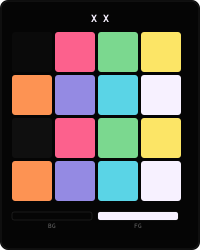
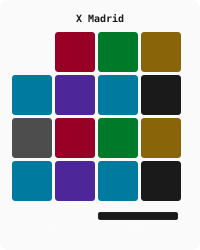
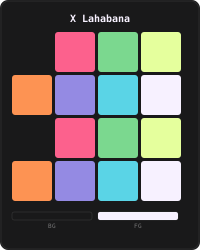
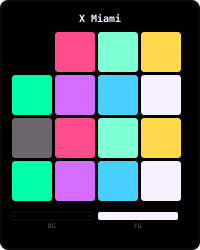
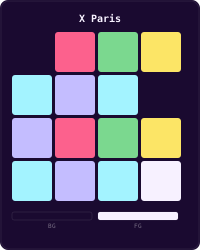
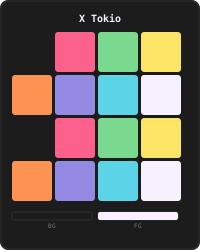
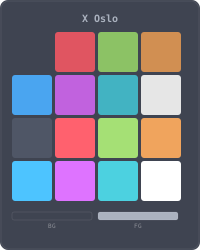
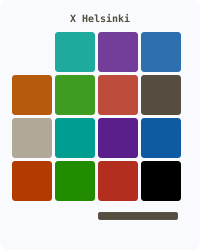
- Colors
- Contributing
- Security
- License
- Related repos
- X
themes/: Theme collections (xscriptor-themes,x-dark-colors).extensions/: VS Code extension packages (currentlyxglass).ui-mods/: CSS and JS custom UI tweaks for Custom UI Style setups.assets/: Shared previews and branding assets.


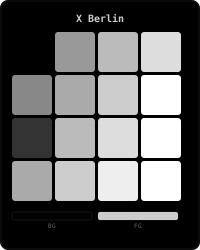
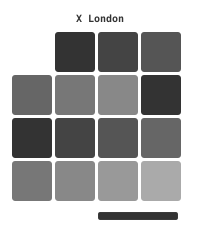
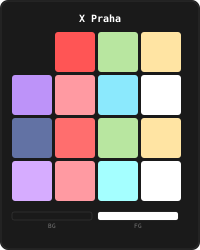
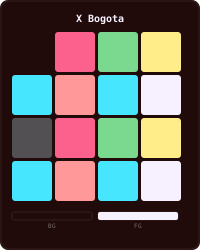
Static previews


- Open Extensions view and search for
Xscriptor. - Install
XGlass, then install any Xscriptor theme and icon pack you want. - For local builds, open a package folder and press
F5to run an Extension Development Host.
- Color Theme: open
Preferences > Color Themeand select an Xscriptor theme. - File Icons: open
Preferences > File Icon Themeand select an Xscriptor icon theme. - XGlass: run
xglass: Enable Transparency Mode,xglass: + transparency, orxglass: - transparency.
Packages are designed for VS Code and VS Code forks, including VSCodium, Code - OSS, Cursor, Antigravity, and Trae.
Contributions are welcome. See CONTRIBUTING.md for workflow and conventions.
To report vulnerabilities, read SECURITY.md and follow the private disclosure process.
- Default: repository code is under MIT License.
- Themes inside
themes/keep their own package-level license files.


